Japanese Ramen Simulator: Save Location, Backups & Steam Cloud
Find the Steam Cloud metadata save path and follow a copy-first backup checklist, with clear limits on untested restores and co-op progress.
What is confirmed about saves
The official Steam metadata lists Steam Cloud and Save Anytime. These features do not establish a particular keyboard shortcut, autosave interval or successful cross-version restore.
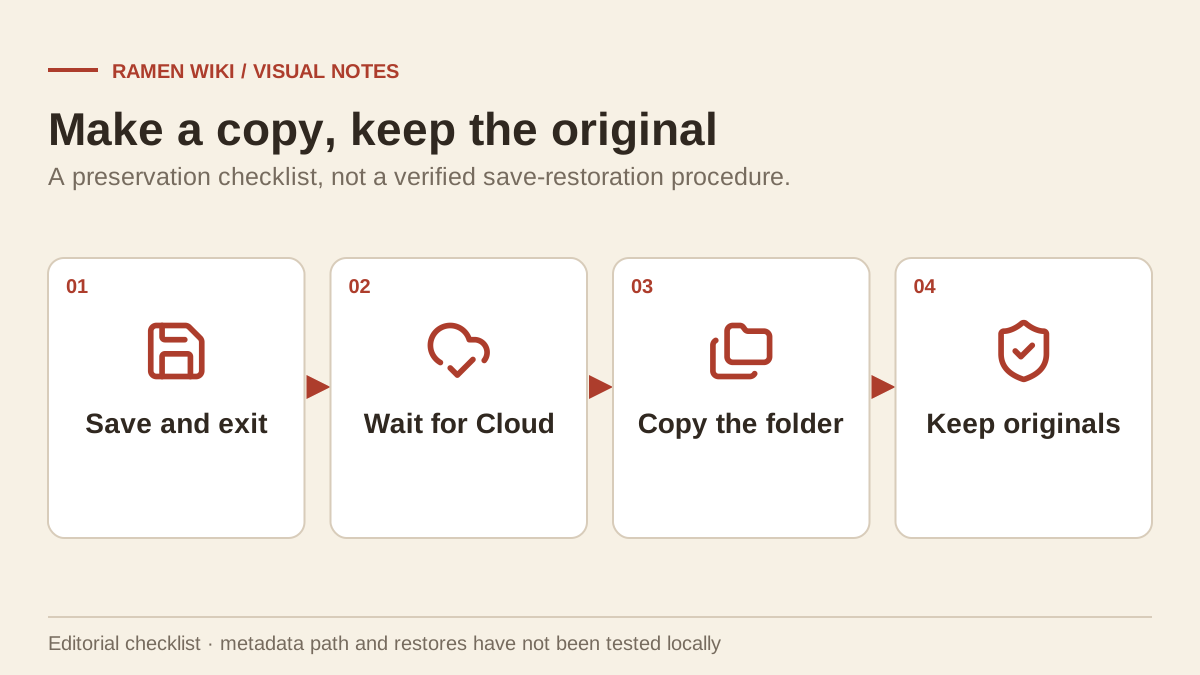
We have not installed the game locally or tested save recovery. This page separates the published cloud path from general backup advice so that a suggested precaution is not mistaken for a verified restore procedure.
Windows save location from cloud metadata
SteamDB’s mirror of the Steam Cloud configuration points to this location:
%LOCALAPPDATA%\RealRamenSimulator\Saved\SaveGames\MenWorlds\<64-bit Steam ID>Replace the angle-bracket portion with the relevant account’s numerical Steam ID. The metadata uses the internal folder name RealRamenSimulator, even though the store title is Japanese Ramen Simulator.
| Part | Meaning |
|---|---|
| %LOCALAPPDATA% | Windows Local AppData for the signed-in Windows user. |
| RealRamenSimulator | The internal game folder named in cloud metadata. |
| Saved\SaveGames\MenWorlds | The save-directory branch shown by that configuration. |
| 64-bit Steam ID | The account-specific subfolder. |
You can paste the path through MenWorlds into File Explorer’s address bar to look for an existing account folder. If it is absent, do not create empty replacement files or assume the metadata path has been validated on your installation. Check that you are using the Windows account and Steam account that played the game.
Copy-first backup checklist
This is general file-preservation advice. A backup made this way has not been tested as a guaranteed compatible restore.
- Use the game’s available save control and exit normally.
- Close the game and allow Steam’s displayed cloud synchronization to finish.
- Locate the existing account folder if it is present.
- Copy the entire folder to a separate backup location.
- Name the backup with the date and the game version.
- Keep the original folder and files intact.
Copying the whole folder avoids guessing which individual file contains the shop you need. Do not overwrite a working save simply to test whether a backup loads. Before attempting any later restoration, preserve another copy of the current state.
Steam Cloud conflicts and multiple machines
Steam Cloud support is not a guarantee that every conflict chooses the progress you intended. If Steam presents a conflict, compare the displayed times and the machine you last used before choosing. This is a general caution about synchronization, not a game-specific conflict test.
Do not play two unsynchronized copies of the same shop while trying to recover missing progress. Stop, preserve local copies and collect the relevant timestamps for support.
Co-op and guest progress
The sources used here do not establish whether each guest receives an independent persistent shop, how host ownership works, or whether a shop can be transferred between accounts. Avoid assuming that being able to join a session means you own its save.
For join failures, use co-op troubleshooting. It distinguishes network errors from save problems. For repeatable solo work, see NPC staff and cleaning.
The launch patch changes several load and end-of-day behaviors, including refrigerator contents and gyoza handling. These individual fixes are documented in patch notes and do not prove every save-recovery scenario is resolved.
Related Articles
guides
Japanese Ramen Simulator: All 18 Achievements & Requirements
Browse all 18 Steam achievements, their published requirements and related cooking, boss, customization and shop-level milestones.
guides
Japanese Ramen Simulator: Beginner Guide
Start your first ramen shift with a practical preparation, cooking and service checklist, plus verified tutorial changes from the launch patch.
guides
Japanese Ramen Simulator: Controls, Language & Cart Settings
Check confirmed controls, interface languages, controller limits and cart changes, with careful steps for launch-day input and language problems.
Was this helpful?
Thanks for the feedback!